Liserok Visibility Manager operates on an advanced, independent visibility engine designed to bypass the rigid limitations of standard layer management. Because this engine tracks visibility via a custom data matrix, native SketchUp visibility commands cannot interpret Liserok’s smart states.
To ensure a seamless production workflow, prevent workspace desynchronization, and fully leverage features like automatic scene saving, replace traditional manual isolation habits with Liserok’s dedicated workflow commands.
Using native SketchUp tools (such as native Hide/Unhide menus or the Entity Info panel toggle) will bypass the Liserok data engine, leading to unexpected behavior in your view setups.
Replacement commands for manual Hide/Unhide operations
You can assign keyboard shortcuts to all new commands. A more detailed description is provided below the screenshot.
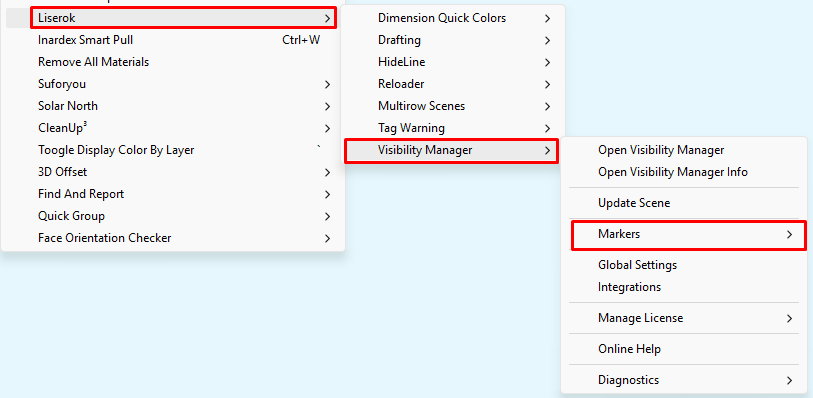
1/ Replacement for Edit > Hide
Extensions > Liserok > Visibility Manager > Markers > Hide
(We recommend assigning the hotkey H)
The command is also on the context menu, similar to the native Hide, under the name Hide (Liserok)
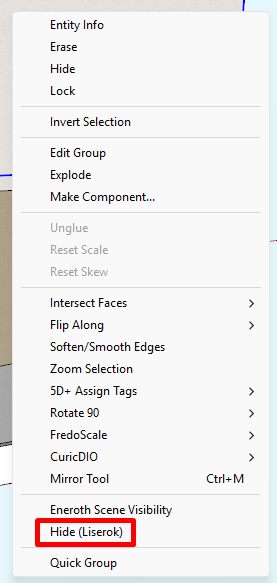
2/ Replacement for Edit > Unhide > Selected
Extensions > Liserok > Visibility Manager > Markers > Unhide Selected
The command is also on the context menu, similar to the native Hide, under the name Unhide Selected (Liserok)
3/ Replacement for Edit > Unhide > Last
Extensions > Liserok > Visibility Manager > Markers > Undo Hide
The command is also on the context menu under the name Undo Hide (Liserok)
While native SketchUp only remembers a single isolation step, Liserok’s engine stores a robust timeline of up to 100 consecutive hide operations. This history is embedded directly within the project file, meaning it is fully preserved even after closing and reopening your model. If an element was unhidden via another tool or deleted in the meantime, the command automatically skips it and continues smoothly back through your workflow history.
4/ Replacement for Edit > Unhide > All
Instead of one command, the command is split into two commands:
4a/
Extensions > Liserok > Visibility Manager > Markers > Unhide All – Preserve Markers
(We recommend assigning the keyboard shortcut U)
Displays objects manually hidden by the Liserok Hide command, but strictly respects active Marker filters. Elements assigned to currently disabled Markers remain securely hidden.
4b/
Extensions > Liserok > Visibility Manager > Markers > Unhide All – Show All Markers
Workflow Interoperability & Best Practices
Outliner Management vs. MARKERS
Liserok MARKERS completely replace visibility management through the native Outliner. Controlling project visibility via MARKERS is significantly faster and more intuitive.
If it suits your workflow, use the native Outliner strictly for organizing the model’s nested structure and component hierarchy, but handle all active hiding and unhiding operations directly through the Liserok dashboard. Managing visibility in both systems at the same time can lead to unexpected display setups.
Entity Info Panel Toggle
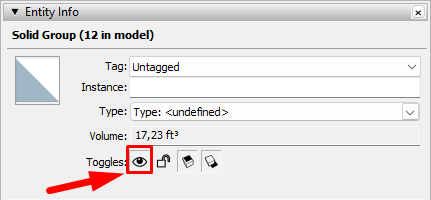
Avoid using the native visibility toggle button inside the SketchUp Entity Info panel. Because this button bypasses the Liserok engine, using it will desynchronize your active Marker setups and cause unexpected display behavior.
Scene Integration & MARKERS Synchronization
Liserok MARKERS utilize advanced visibility properties that the native SketchUp “Update Scene” command cannot capture.
To ensure that MARKERS settings are saved correctly in scenes use the replacement command from the menu:
Menu Path: Extensions > Liserok > Visibility Manager > Update Scene
Direct Access: Click the “Update Current Scene” button directly within the MARKERS UI panel.
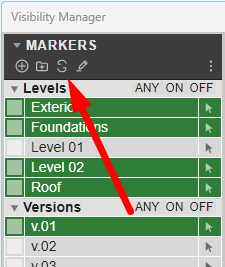
⚠️ Important: Avoid using the native SketchUp scene update function, as it will fail to capture active Liserok data for that specific scene.

Model Optimization Utilities (e.g., CleanUp³)
When running third-party geometry optimization tools like CleanUp³ with the ‘Erase Hidden Geometry’ option enabled, the utility scans the entire database for hidden states. To safely protect your layered project data, always execute Liserok Unhide All – Show All Markers before running any global purging scripts. This ensures that elements temporarily filtered out by your current production view are not misidentified as redundant geometry.