Match Markers is a handy tool for quickly transferring assigned Markers from one object to another. All assigned markers are transferred from the source object to the target. At the same time, if the target object already has other Markers assigned, those will be automatically overwritten and replaced by the transferred ones.
Where can I find Match Markers?
You can find this feature directly in the Visibility Manager panel under the dedicated Match Markers icon.
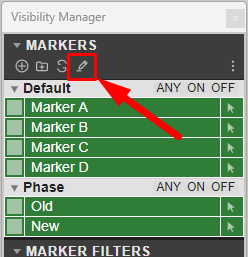
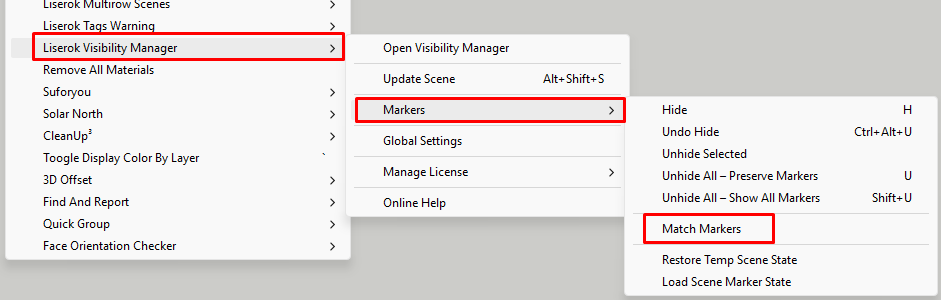
Alternatively, you can access it via the menu path:
Extensions > Liserok Visibility Manager > Markers > Match Markers
(Mapping this command to a custom keyboard shortcut is highly recommended for a faster production workflow).
Advanced Modifiers (CTRL & ALT Keys)
While the tool is active, you can utilize the following modifier keys to streamline your workflow:
- CTRL = Toggle Top / Deep Mode
Controls whether Markers are applied to the primary group/component container (Top Mode) or injected into the deepest nested groups and sub-components within that container (Deep Mode). This operation strictly targets structural containers and does not affect primitive geometry such as lines or faces. - ALT = Pick New Source
Hold the ALT key at any time to sample a new source object instantly without needing to restart the tool or return to the interface.
Video Walkthrough
Below is a detailed video demonstration illustrating how this feature works in standard project setups: