Global Settings
The Global Settings dashboard allows you to fully customize the interface, layout, and active feature set of the Liserok Visibility Manager.
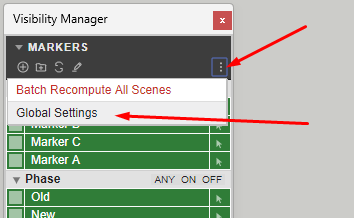
You can access Global Settings via two paths:
Menu Path: Extensions > Liserok Visibility Manager > Global Settings
Direct Access: Click the dedicated settings icon directly within the main interface panel:
Interface Customization (Skins & Font Size)
Several UI skins are available to match your workspace preference, along with three selectable font sizes to ensure optimal readability on any display resolution. (See the silent video demonstration below):
Workspace Layout (Column Organization)
The workspace layout is fully modular. Using simple drag-and-drop actions within Global Settings, you can arrange the core plugin modules into custom multi-column layouts to optimize your screen real estate. (See the silent video demonstration below):
Disabling unused modules
To maintain a clean, clutter-free environment, you can deactivate any of the core modules that do not fit your current workflow requirements. Deactivated modules are hidden from the primary panel instantly. (See the silent video demonstration below):
Disabling Filters and States categories
In many cases, you may not need separate categories for Marker Filters, Tag Filters, and States at all. If they are not essential to your workflow, you can easily disable them in Global Settings. This is a highly recommended layout tweak to eliminate visual clutter and maximize your vertical screen real estate. (See the silent video demonstration below)
Note: Categories for primary MARKERS remain permanently active, as they serve as the essential framework for advanced conditional filtering logic (ANY/ALL match parameters).